

The fastest way to add booking to your website is to embed a booking widget or turn on your site builder’s built-in appointments feature. Either route can give you a working booking flow in under 30 minutes for a standard setup. Most small businesses should start there, then layer in calendar sync and payment collection. Some booking platforms cover the embed, the calendar and accounting sync, a mobile app, and voice-agent accessibility in one setup. Expressbook is one of them, with no subscription: prepaid credits let you test it on real bookings.
TL;DR:
- Most small businesses should prioritize calendar and payment integration over custom branding to ensure reliable booking and prevent double-bookings.
- Using a built-in booking feature or an embedded widget can be set up in under 30 minutes, with the order of configuration steps being crucial.
- Connecting calendar and accounting systems automatically reduces manual reconciliation work and minimizes scheduling conflicts.
- Automated reminders via email, SMS, or WhatsApp significantly reduce no-shows and improve customer attendance.
- Platforms that combine booking, payments, and accounting within a single dashboard offer faster setup and ongoing management benefits.
Table of Contents
- How to Add a Booking Feature: The End-to-End Checklist
- Option A: Use Your Website Builder’s Built-In Booking Feature
- Option B: Embed a Booking Widget (The Copy-Paste Method)
- Option C: API Integration or a Custom Booking System
- Payments, Calendar Sync, Reminders, and Accessibility
- Test, Launch, and Promote Your Booking Page
- How ExpressBook Covers This Entire Checklist
- The Real Bottleneck Isn’t the Widget, It’s the Accounting
- Get Booking, Payments, and Accounting Working Together
- Sources
How to Add a Booking Feature: The End-to-End Checklist
Adding a booking feature to an existing site is less about coding and more about sequencing. Skip a step, like calendar sync, and you will end up with double-bookings by week two. Follow these in order and you avoid the most common launch mistakes.
- Decide where booking will live. A dedicated page, a popup button, or a link to a hosted booking URL each serve different traffic. A dedicated page works for service businesses where booking is the main conversion goal; a popup button suits sites where booking is one of several actions.
- Pick your integration approach. You have three real choices: your website builder’s built-in appointments feature, an embedded third-party widget, or a custom API integration. Most small businesses never need the third option.
- Build your services or event types. Define each bookable service with its duration, any buffer time between appointments, and which staff member (if any) delivers it. A 45-minute massage with a 15-minute buffer behaves very differently from a 20-minute consultation with no buffer.
- Connect your calendar. Sync Google Calendar or Outlook so the booking tool can see existing commitments and block them automatically. This single step prevents the vast majority of scheduling conflicts small businesses run into.
- Configure payments and deposits. Decide whether customers pay in full, pay a deposit, or pay nothing until service. Set up confirmation emails and reminder timing at the same time, since both usually live in the same settings panel.
- Add your call-to-action everywhere it matters. Put a “Book Now” button in your header, your homepage hero section, and your footer. A booking feature that only lives on one buried page rarely gets used.
- Test the entire flow yourself, then publish. Book a real appointment as if you were a customer, confirm every notification arrives, then promote the link once you’re satisfied.
That sequence works whether you’re a solo massage therapist or running a five-chair salon. The order matters more than the tool you pick. Skipping calendar sync to launch faster, for instance, is one of the most common ways small businesses end up with two clients showing up for the same slot.
Option A: Use Your Website Builder’s Built-In Booking Feature
If your website runs on a builder platform, check its dashboard for an appointments or scheduling module before you install anything new. Built-in booking is the right call when you run a single location, don’t need heavy branding control, and want the fastest possible setup.
Enabling it typically follows a predictable pattern:
- Turn on the appointments or scheduling feature from your site’s dashboard or app marketplace.
- Create your services or event types, each with its own duration and price.
- Set your working hours and blocked-out dates.
- Add staff members if more than one person takes bookings.
- Connect a payment processor and link your calendar.
The advantage is speed. Everything lives inside one dashboard, updates roll out automatically, and you’re not juggling a second login. The trade-off is customization: built-in tools often cap what you can rebrand or reconfigure, and they lock you into that platform’s ecosystem if you ever switch website providers.
After enabling it, book a test appointment yourself, confirm the reminder email fires, and check how the widget renders on a phone. Built-in tools sometimes look great on desktop and cramped on mobile, so don’t skip that check before you go live.
Option B: Embed a Booking Widget (The Copy-Paste Method)
Embedding a third-party widget is the most flexible middle ground: more customizable than a builder’s native tool, far less involved than custom code. You copy a snippet from your booking software, paste it into your site, and the widget renders wherever you placed it.
Three embed styles cover almost every use case:
- Inline embed: the full calendar displays directly on a page, ideal for a dedicated “Book Now” page.
- Popup widget: a floating button that opens the booking calendar in a modal, good for sites where booking is secondary to other content.
- Popup text: a text link inside a paragraph that opens the same modal, useful for embedding a booking prompt mid-content.
The actual mechanics are copy-paste on every major platform. On WordPress, drop the snippet into a Custom HTML block or install a dedicated plugin. On Wix, use the HTML iframe embed element. On Squarespace, add a Code Block wherever you want the widget. On Shopify, paste the snippet into your page’s source through the theme editor.
Once it’s live, test four things: the booking actually saves, the confirmation email arrives, the appointment lands on your connected calendar, and the widget resizes properly on a phone screen.
Pro Tip: If you take deposits or full payments through the widget, confirm which payment processor handles the transaction and how it manages PCI compliance before you publish. Getting that wrong is the difference between a smooth checkout and a support ticket about a failed charge.
If your team has multiple staff members handling different services, check whether your widget supports staff-to-service mapping. Advanced widgets can restrict which staff member shows up for which service, which matters once you have more than one or two people taking appointments.
Option C: API Integration or a Custom Booking System
Most small businesses never need this route. It makes sense only when you’re running multiple locations, coordinating complex resource scheduling (rooms, equipment, and staff together), or need deep two-way sync with an internal back-office system that a standard widget can’t touch.
The technical workflow generally involves:
- Authenticating your site or app against the booking platform’s API.
- Pulling live availability through an endpoint before showing time slots to customers.
- Submitting the reservation through a booking endpoint once a customer confirms.
- Listening for webhook confirmations to trigger calendar updates and accounting entries automatically.
Building this from scratch usually means hiring a developer and budgeting for ongoing maintenance every time the booking platform updates its API. Before committing to that cost, check whether a no-code connector or middleware tool can bridge the same systems without custom code. For the overwhelming majority of service businesses, that middle path covers everything a full custom build would, at a fraction of the effort.
Payments, Calendar Sync, Reminders, and Accessibility
These four pieces determine whether your booking feature actually works day to day, not just on launch day.
- Payments: decide between a deposit or full payment upfront. Deposits cut no-shows but require a clear refund and cancellation policy stated before checkout.
- Calendar sync: connect Google Calendar or Outlook so staff availability updates in real time and no one gets double-booked across two separate calendars.
- Reminders: send confirmations and reminders through more than one channel. Email is standard, but automated WhatsApp reminders reach customers who ignore email, and SMS reminders catch the rest.
- Accessibility: a booking page needs proper alt text and full keyboard navigation. ExpressBook adds a voice agent so visually impaired customers can book appointments and get answers about your business by voice, alongside a dedicated mobile app for both customers and admins.
Reminders alone carry outsized weight here: a missed appointment costs you the revenue and the slot, and a coherent reminder cadence across two channels catches most of the customers who’d otherwise no-show.
Test, Launch, and Promote Your Booking Page
Before you tell a single customer the booking feature exists, run through this launch checklist yourself.
- Book a real test appointment as a customer would, start to finish.
- Confirm the confirmation email arrives and the calendar invite appears on your synced calendar.
- Test the reschedule and cancel links to make sure they actually work.
- If you collected payment, confirm the charge processed and a refund can be issued cleanly.
- Check the booking widget on a phone, not just a desktop browser.
- Confirm your CTA button is visible without scrolling on your homepage.
Pro Tip: Keep a hosted booking page URL as a fallback link, even if your main strategy is an embedded widget. If the widget ever fails to load, a hosted link gives customers a way to book anyway, which several small-business guides recommend as standard practice.
Once it’s tested, promote it everywhere: your homepage, your site’s header and footer, your email signature, your social media bios, and the link field in your Google Business Profile. A booking feature nobody knows about doesn’t generate revenue.
How ExpressBook Covers This Entire Checklist
Some booking platforms handle most of the steps above as native features rather than separate installations. These include embed widgets, Google Calendar sync, and accounting integration, along with payment collection, automated reminders, a mobile app, and voice agent features to improve accessibility.
- Embed widgets that follow the inline, popup, and popup-text patterns covered above.
- Two-way calendar sync with Google Calendar to prevent double-bookings.
- Accounting integration automates data sync.
- Automated email and reminder settings tied to each service.
- A dedicated mobile app for users.
- A voice agent for accessible booking and business questions.
| What matters | Why it matters | How ExpressBook handles it |
|---|---|---|
| Setup speed | Faster launch reduces project delays | Widget and calendar setup available in one dashboard |
| Accounting sync | Manual entry causes end-of-month errors | Automatic QuickBooks/Xero sync |
| Accessibility | Widens who can book and self-serve | Voice agent plus mobile app |
| Risk-free testing | Lets you confirm fit before paying | Prepaid credits, no monthly fee |
You can test the full platform on a small credit top-up, with no subscription, before deciding whether it replaces your current manual booking process.
The Real Bottleneck Isn’t the Widget, It’s the Accounting
Most guides on this topic treat the embed code as the hard part. It isn’t. Copying a snippet into a WordPress block or a Squarespace Code Block takes minutes, and the platforms make that step nearly foolproof now. The part nobody warns you about is what happens after the booking lands: someone still has to reconcile that payment against your books by hand, appointment by appointment, at the end of every month.
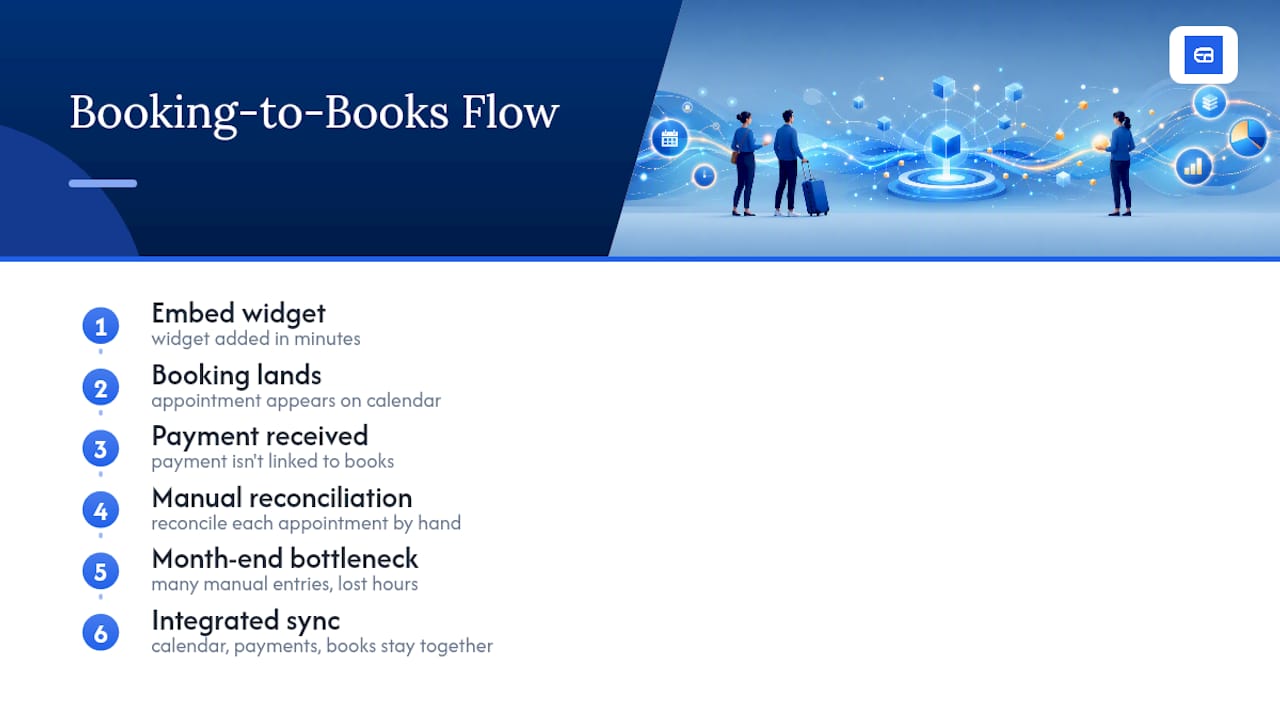
That’s where most small-business owners lose the time they thought they’d saved. A widget that books appointments but doesn’t talk to your accounting software just moves the manual work downstream instead of eliminating it. If you’re picking between the built-in option, an embedded widget, and a custom build, the deciding factor shouldn’t be which one looks nicest on your homepage. It should be which one keeps your calendar, your payments, and your bookkeeping in the same system without you touching a spreadsheet.
Prioritize calendar sync and accounting sync before you worry about branding or widget aesthetics. Get those two right, and the booking feature pays for itself in reclaimed hours, not just booked appointments.
— serge
Get Booking, Payments, and Accounting Working Together
Most booking tools stop at the calendar. Some booking platforms sync every booking and payment into accounting software so you’re not reconciling appointments by hand at month’s end. For a service business juggling scheduling, deposits, and bookkeeping across multiple tools, that single sync point can be a practical advantage over piecing together a widget, a payment processor, and a spreadsheet yourself.
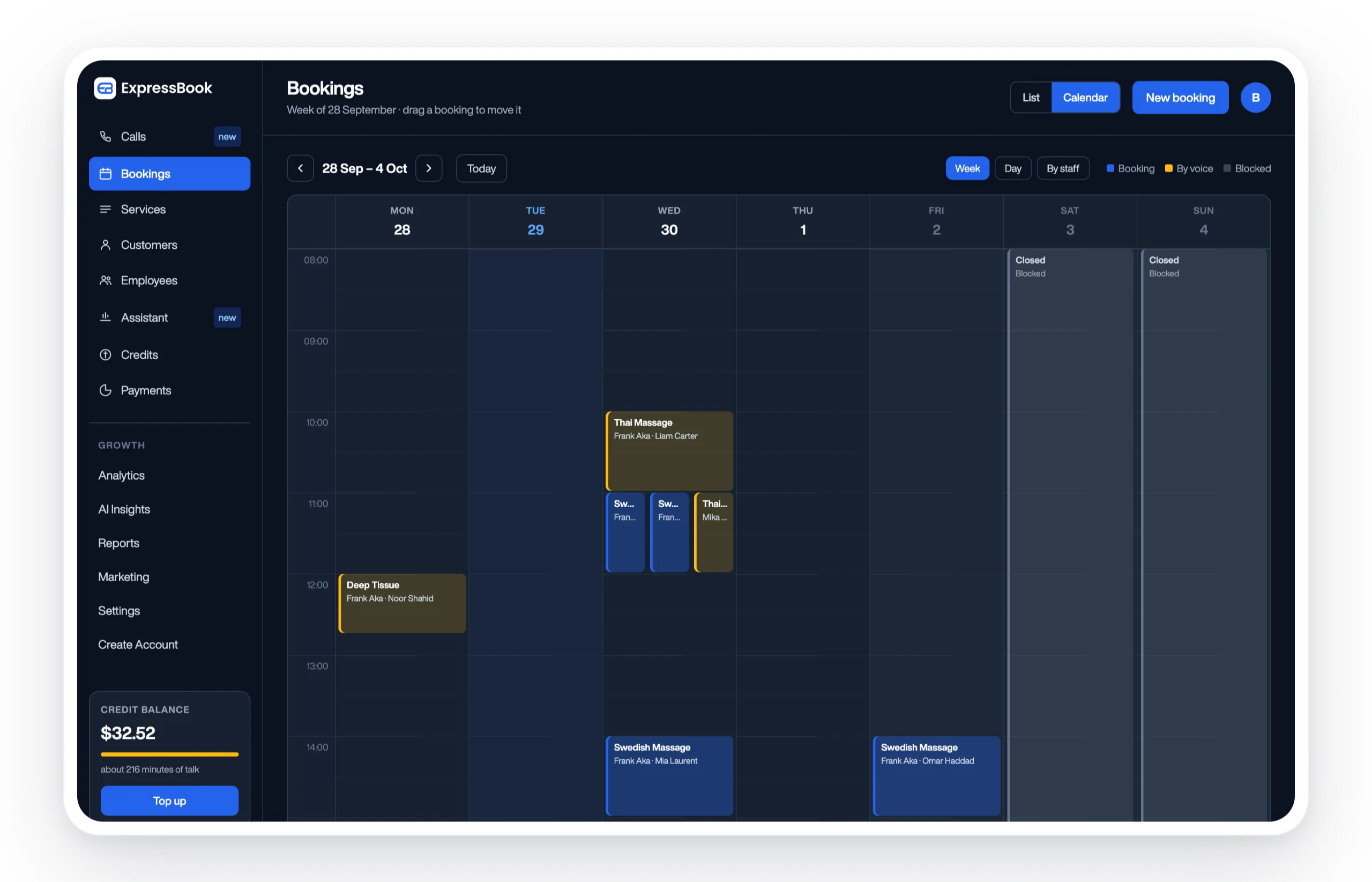
The setup covers everything this guide walked through: embed widgets, Google Calendar sync, automated reminders, and payment collection, all inside a dashboard built specifically for service businesses like salons, gyms, and healthcare providers. It also includes a mobile app for you and your staff, and a voice agent so customers with visual impairments can book and ask questions without needing sighted assistance.
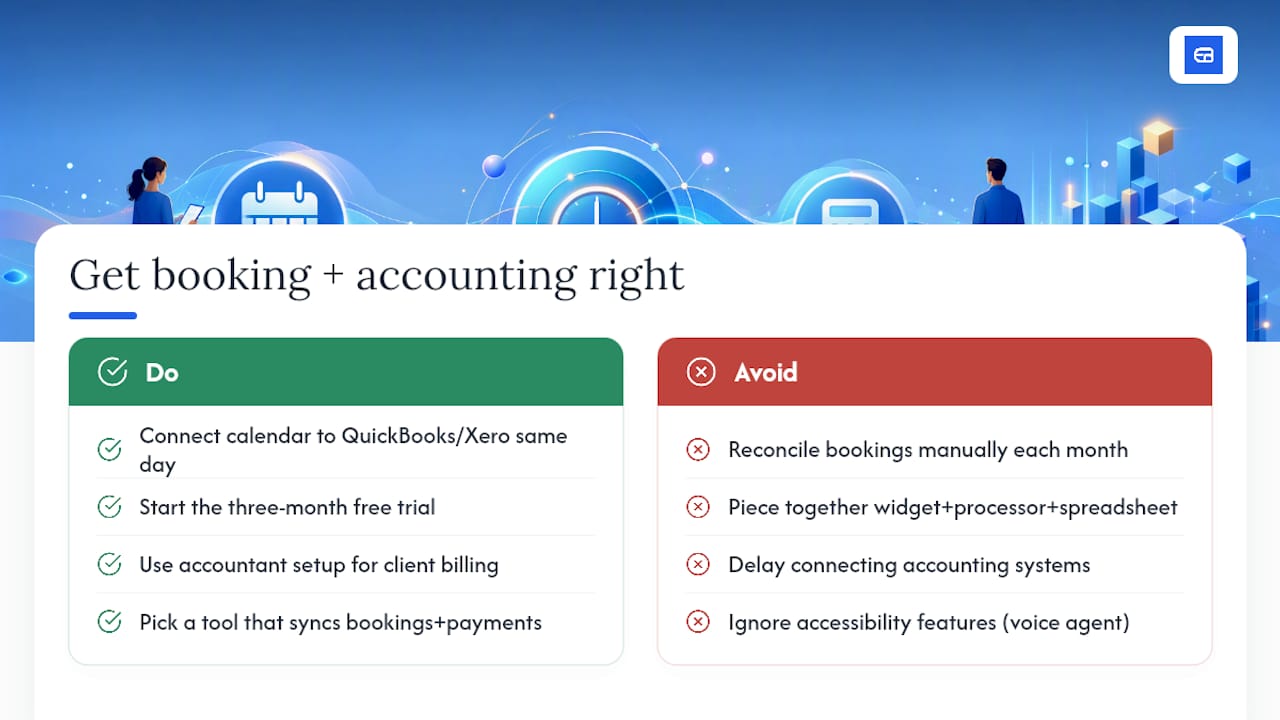
If your business runs on QuickBooks or Xero and you’re tired of double-checking whether a booking actually made it into your books, set up Expressbook and connect your calendar and accounting software the same afternoon you sign up. If you specifically handle client billing through an accounting workflow, the scheduling setup built for accountants is worth a look before you commit to a general-purpose tool.
Sources
For readers who want the exact technical steps for their platform, these sources cover the mechanics referenced throughout this guide:
- Booking widget — Common Ninja
- How to Add Online Booking to Any Website (30-Minute Setup)
- How To Make a Booking Website in 7 Steps (2025) – Shopify
- How to add an online booking system for your small business – GoDaddy