

If bookings look shifted, double up, or a date that should be open shows as blocked, the fastest fix is a three-step check: confirm time zone settings match between ExpressBook and the external calendar, reauthorize any connector showing an error or disconnected status, and force a manual resync. Most calendar sync troubleshooting cases resolve at one of these three points, and each takes less than five minutes to test.
Run through this checklist before touching anything else:
- Verify the timezone set in ExpressBook matches your business location and each staff sub-account.
- Check the timezone on the connected Google Calendar or Outlook account.
- Open ExpressBook’s integrations page and confirm connector status reads “Connected,” not “Error” or “Disconnected.”
- Trigger a manual resync from the integrations panel.
- Reauthorize the connector if the status flags an expired or revoked token.
- Book a two-minute disposable test appointment and watch both calendars.
- Confirm the test event appears with the correct time, duration, and attendee on both sides.
- Delete the test event and confirm it disappears from both systems.
If the test event syncs cleanly within a few minutes, you’re done. If it doesn’t, the sections below walk through exactly where to look next.
Key Takeaways
Most calendar sync failures trace back to a timezone mismatch, an expired connector token, or a booking rule mistaken for a real sync error.
| Point | Details |
|---|---|
| Check time zones first | Mismatched settings between ExpressBook and the external calendar are a leading cause of shifted or blocked appointments. |
| Reauthorize expired connectors | An “Error” or “Disconnected” status almost always means the OAuth token needs renewal, not a deeper technical fault. |
| Separate rules from real failures | Buffers, minimum notice, and staff hours often create false “blocked” dates that look like sync problems. |
| Collect diagnostics before escalating | Connector status, last sync timestamp, and external event ID speed up support resolution significantly. |
| Use ExpressBook for hands-off reliability | ExpressBook’s premium support and connector monitoring handle token renewal and duplicate detection so admins don’t have to. |
Table of Contents
- Quick End-User Checks to Run First
- Are Booking Rules Blocking Dates, Not Sync?
- How to Reauthorize Connectors and Fix Permissions
- Why Do Recurring Events Fail to Sync?
- What Diagnostic Data Should You Collect Before Contacting Support?
- What’s the Safest Way to Restart a Broken Sync?
- How Can You Prevent Sync Problems From Recurring?
- A Short Note From ExpressBook Support
- When to Let ExpressBook Handle It for You
- Frequently Asked Questions
- Sources
Quick End-User Checks to Run First
Before escalating anything, rule out the simple stuff. Most visible sync issues trace back to a calendar selection or permission setting, not a broken connector.
Start by confirming the correct calendar is selected and shared. In Google Calendar, open Settings & sharing and verify ExpressBook is listed under “Share with specific people” with the right access level. In Outlook, check the shared calendar’s permission tier directly.
Permission errors are the second most common culprit. ExpressBook needs “Make changes to events” (Google) or full edit rights (Outlook), not just “view” access. If a staff member’s calendar shows read-only permissions, ask them to upgrade access from their own calendar settings, since a manager-level connection rarely covers everyone’s individual calendars.
Sync isn’t instantaneous. Expect a short delay between an ExpressBook booking and its appearance on the external calendar, and vice versa, since most calendar imports refresh on a set cycle rather than in real time.
Pro Tip: Create a throwaway test appointment during off-hours, then time how long it takes to appear on the other calendar. A successful test shows the same title, time, and duration on both sides within the expected window, with no duplicate entries.
Are Booking Rules Blocking Dates, Not Sync?
A date that looks unavailable isn’t always a sync failure. ExpressBook’s own booking rules frequently override calendar blocks, and mistaking a rule for a broken connector wastes hours chasing the wrong problem. Availability mismatches often come down to platform-side rules rather than a broken feed, a pattern documented across booking software beyond ExpressBook as well, including channel-level overrides that mimic sync failures.
Common rules that create false positives:
- Minimum notice periods that hide near-term slots.
- Buffer time before or after appointments.
- Schedule exceptions or holidays set at the staff level.
- Staff working hours that don’t match the calendar’s blocked time.
- Parent/child rate plan behavior that hides child services when the parent slot is booked.
To test, pick a date that looks blocked and temporarily disable one rule at a time, starting with buffers and minimum notice. Then force a resync and check again. In the ExpressBook calendar view, a greyed-out slot usually means a rule, while a red “blocked” tag tied to an external event ID points to an actual synced conflict.
How to Reauthorize Connectors and Fix Permissions
When a connector shows “Error” or “Disconnected,” or sync stops without warning, reauthorization is almost always the fix. Expired or revoked authorization tokens are the leading cause of sudden, widespread sync failures, and Google and Microsoft both expect periodic reconsent rather than a one-time setup.
- Open ExpressBook’s integrations page and locate the affected connector’s status indicator.
- Click “Reauthorize” and sign in with the same external account used originally.
- Approve the consent screen. For Google Workspace or Microsoft 365 environments, a workspace admin may need to grant consent separately from the ExpressBook admin.
- Confirm the connector reads “Connected” and re-run a manual resync.
- Check that shared calendar visibility still includes ExpressBook after reauthorization, since some providers reset sharing permissions during reconnection.
Reauthorization needs specific rights: read/write or “manage events” access, not view-only. Set a recurring reminder every few months, since token lifetimes are finite and silent expiration is common. Whoever manages your Google Workspace or Microsoft 365 admin console should own this task, not individual staff.
Why Do Recurring Events Fail to Sync?

Recurrence rules and unusual event types cause a disproportionate share of calendar sync troubleshooting tickets. Weekly custom recurrences (like “every other Tuesday”) sometimes fail to translate cleanly between ExpressBook and the external provider’s API, and monthly events scheduled near the end of a month can drop or duplicate when the target month has fewer days.
Watch for these edge cases:
- Attendee-less or private events getting filtered out by the provider’s API before they ever reach the calendar.
- Custom recurrence patterns that don’t map to standard weekly/monthly rules.
- Events near month-end (the 29th through 31st) skipping or duplicating on shorter months.
If a recurring event won’t sync, open the recurrence editor, re-select the exact days explicitly, and save again rather than relying on a preset pattern. When that fails, delete and recreate the series from scratch. A stable connector correctly maps each event’s external ID on both sides, and a broken mapping is usually what’s behind a stubborn recurring failure.
What Diagnostic Data Should You Collect Before Contacting Support?
If self-service steps don’t resolve the issue, gather this information before opening a ticket. It cuts resolution time dramatically because support won’t have to ask for it separately.
| Field | Where to Find It |
|---|---|
| Connector status | ExpressBook integrations page |
| Last sync timestamp | ExpressBook integrations page |
| Last error message | ExpressBook integrations page (hover or expand connector row) |
| External event ID | Event details in Google Calendar or Outlook |
| Event timestamps (both sides) | Compare ExpressBook booking detail vs. external calendar event |
| Recurrence rule text | Event edit view in the external calendar |
| Timezone settings | ExpressBook sub-account settings and external calendar settings |
| Screenshot of the event | Capture from both ExpressBook and the external calendar |
When you submit a ticket, include a one-line summary (“Recurring Tuesday appointments for Staff X stopped syncing on date], connector shows ‘Error’”), the table above filled in, and a screenshot from each system. [Error and Disconnected statuses, along with duplicate integrations or missing external event IDs, are the specific symptoms support teams look for first.
What’s the Safest Way to Restart a Broken Sync?
A full disconnect-and-reconnect fixes stubborn issues, but done carelessly it risks duplicate bookings. Follow this order to minimize disruption:
- Notify staff that sync will be briefly interrupted.
- If ExpressBook offers a booking hold feature, enable it to pause new appointments temporarily.
- Export or screenshot current reservations as a backup reference.
- Disconnect the affected connector, then reconnect and reauthorize it.
- Force a manual resync from the integrations page.
- Compare both calendars for duplicate or missing entries and reconcile manually.
- Lift the booking hold once both calendars match.
Before disconnecting, confirm you have a current export of bookings. After reconnecting, check that the same test appointment method from earlier in this guide still syncs correctly. If duplicates appear, sort by external event ID: entries missing an ID or showing a duplicated one are the echoes to delete.
How Can You Prevent Sync Problems From Recurring?
A little routine maintenance beats another troubleshooting session. Build these into your quarterly calendar:
- Audit iCal feed URLs quarterly, since platforms occasionally regenerate feed links and the old link fails silently.
- Set a quarterly reauthorization reminder for every connected calendar.
- Run a monthly test appointment to confirm sync timing hasn’t drifted.
- Keep timezone settings consistent across the ExpressBook account and every staff sub-account.
- Use clear naming conventions for external calendars so staff don’t connect the wrong one.
- Avoid daisy-chaining calendar exports, where one calendar imports a feed that itself imports another, since this multiplies the risk of ghost duplicates.
- Prefer a native two-way connector over one-directional iCal feeds whenever your provider supports it.
Set up sync health alerts if ExpressBook offers them, and keep a dedicated test account solely for these monthly checks rather than using a real staff calendar.
A Short Note From ExpressBook Support
Most sync tickets we see come down to an expired token or a booking rule mistaken for a broken connector, and the fixes above resolve the majority before anyone escalates. Reach ExpressBook support directly through the app or the mobile app (available for both staff and admins) when the issue involves ExpressBook’s connector, sync status, or booking rules. If the problem sits on the calendar provider’s side, like a Google Workspace admin console setting, loop in your IT admin first. When you do contact us, send the diagnostic table from this guide. It gets your ticket resolved faster, whether you reach us by chat, our voice agent, or a support form.
When to Let ExpressBook Handle It for You
If chasing tokens and connector statuses isn’t how you want to spend your afternoon, ExpressBook’s support team and premium connector options exist precisely for that. There is no subscription, and every account gets full access to sync diagnostics and support, so you can confirm everything works with a small credit top-up.
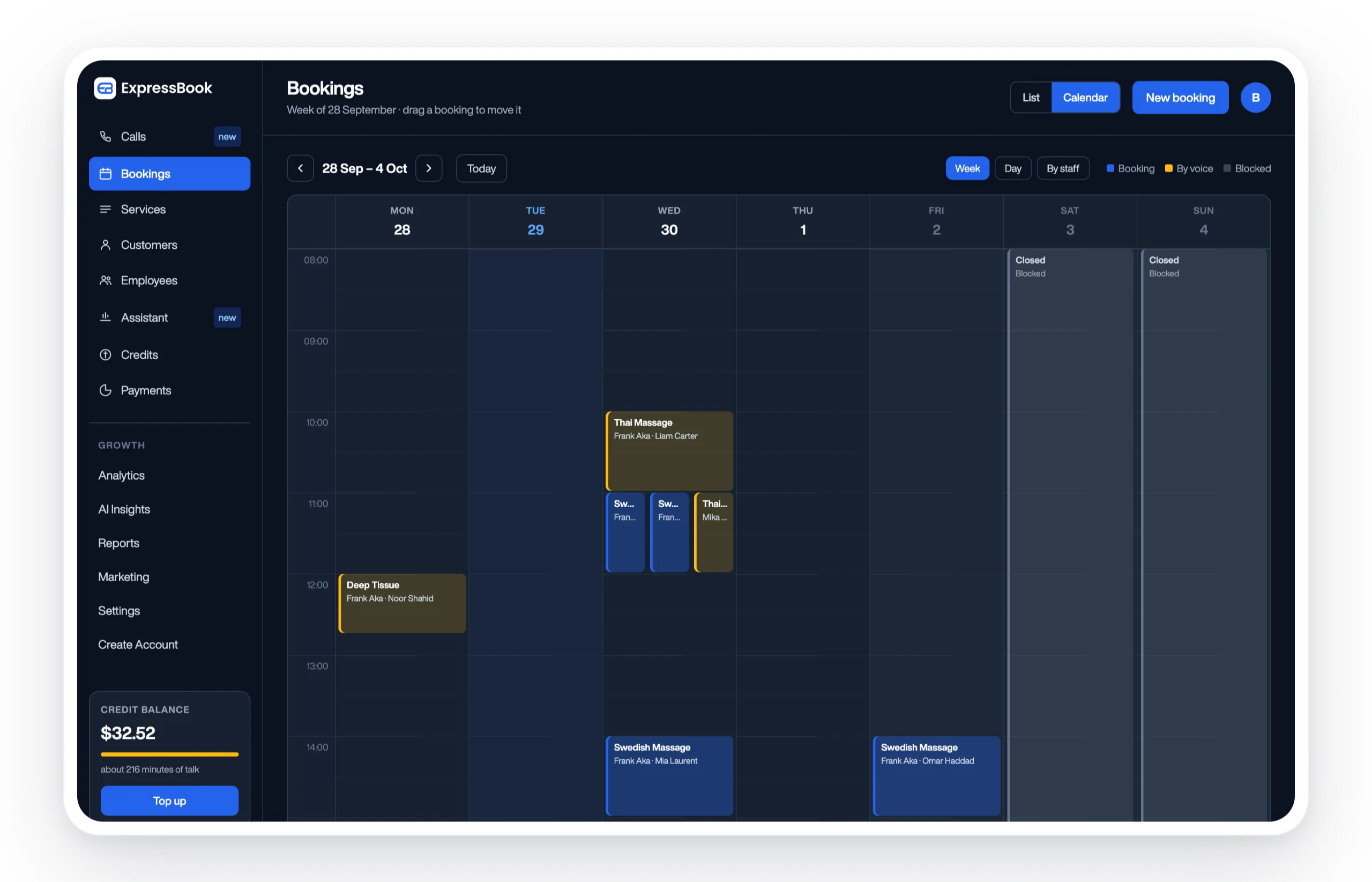
Premium support handles the maintenance most admins would rather not think about: recurring OAuth token renewal, proactive connector health checks that flag problems before they cause a missed booking, and advanced duplicate detection that catches echo entries automatically. That’s a meaningfully lighter lift than manually auditing feed URLs and reauthorizing connectors every quarter yourself.
Opening a support request takes two minutes through the ExpressBook dashboard or the mobile app, and our team will ask for the same diagnostic fields covered earlier in this guide: connector status, last sync timestamp, and the external event ID tied to the affected booking. If you’re still comparing scheduling platforms and want to see how ExpressBook’s two-way sync stacks up, the scheduling software comparison breaks down connector support across options. Set up ExpressBook today and let it keep your calendars aligned while you run the business.
Frequently Asked Questions
Why does ExpressBook show a booking that isn’t on my Google Calendar?
This usually means the sync delay hasn’t caught up yet, or the connector needs reauthorization. Force a manual resync from the integrations page and wait a few minutes before assuming it’s broken.
How long should two way Google Calendar sync take to update?
Most updates appear within a few minutes, but delays of longer stretches happen depending on the provider’s refresh cycle. If an update hasn’t appeared after an extended wait, check connector status before troubleshooting further.
What’s the difference between a booking rule and a real sync issue?
A booking rule (minimum notice, buffers, staff hours) blocks a date within ExpressBook’s own logic. A true sync issue means the external calendar and ExpressBook disagree about what’s actually booked. Testing by toggling rules one at a time separates the two.
Do I need to reauthorize every staff member’s calendar separately?
Often, yes. A manager-level admin connection doesn’t always cover individual staff calendars, so each person may need to grant their own calendar access for their availability to sync correctly.
What should I send ExpressBook support if sync isn’t working?
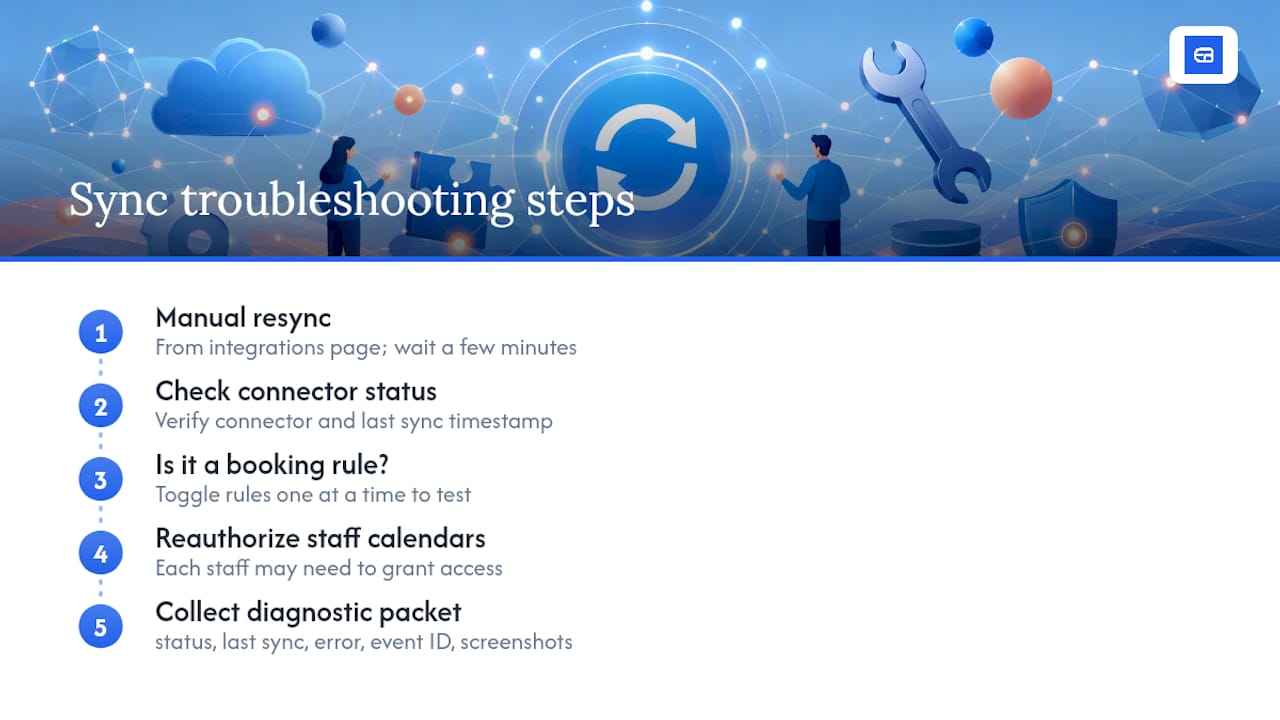
Include connector status, last sync timestamp, the last error message, the external event ID, and a screenshot from both ExpressBook and the external calendar. That diagnostic packet lets support diagnose the issue without back-and-forth.
Sources
- Troubleshooting: Calendar Not Syncing Between Google & NetSuite | CloudExtend Help Center
- Troubleshooting availability sync issues | Hospitable Support