

The fastest way to stop double bookings is real-time, two-way calendar integration between your booking platform and each staff member’s Google Calendar or Microsoft Outlook account. Connect one staff account, enable busy-time feeds, and run a test booking before going any further.
Expressbook supports this out of the box: Google and Outlook integration, QuickBooks and Xero accounting sync, a dedicated mobile app for managers and staff, a voice agent for accessibility, and prepaid credits with no monthly fee, to test the full setup.
At a glance:
- Two-way sync reads staff calendars as busy-time feeds and writes confirmed bookings back to those same calendars
- Google Calendar and Microsoft Outlook (Exchange/Office 365) are the two platforms you will connect most often
- QuickBooks and Xero handle the accounting side, linking appointment records to invoices automatically
- No subscription, so a small credit top-up is enough to run a proper pilot
Key Takeaways
Real-time two-way calendar integration, mapped to a single write-target per staff member and validated through shadow-mode testing, is the most reliable way to eliminate double bookings in a service business.
| Point | Details |
|---|---|
| Choose two-way sync | Push-based integration delivers sub-two-second updates versus 15-minute polling delays. |
| Map write-targets carefully | Designate one calendar per staff member as the write-target; all others are read-only busy-time feeds. |
| Test before going live | Run five core scenarios: double-book attempt, external event creation, recurring change, cancellation, and cross-time-zone booking. |
| Monitor for 7 days post-launch | Track sync lag, error rates, and phantom slots during the first week to catch edge cases early. |
| Expressbook recommended | Expressbook provides real-time Google and Outlook sync, QuickBooks/Xero accounting integration, mobile app, voice agent, and prepaid credits with no monthly fee. |
Table of Contents
- What does “sync multiple calendars” actually mean for a booking platform?
- Pre-setup checklist: what you must have before you start syncing
- How you can sync multiple calendars: methods, pros and cons
- Step-by-step implementation plan for salons, gyms, clinics, and freelancers
- Common sync problems and how to fix them
- Security, privacy, and compliance for service businesses
- How long does implementation take, and what drives the cost?
- What the calendar sync problem actually teaches you about your operations
- Expressbook handles multi-calendar sync so you can focus on your clients
- Sources
What does “sync multiple calendars” actually mean for a booking platform?
For a service business, syncing multiple calendars does not mean connecting your personal Google Calendar to iCloud. It means your booking platform reads each staff member’s external calendar to determine real availability, then writes confirmed appointments back to that calendar automatically.
Two-way sync does both: it reads busy-time feeds from staff calendars and writes new bookings to a designated write-target calendar. One-way sync (an ICS/iCal feed) only exports data in one direction, which creates a latency window where a staff member can accept a personal commitment that the booking platform does not yet know about.
Common calendar systems involved:
- Google Calendar — the most common for salons, freelancers, and fitness studios
- Microsoft Outlook / Exchange / Office 365 — standard in clinics, therapy practices, and corporate wellness settings
- QuickBooks and Xero — not calendar platforms, but they receive appointment data for invoicing and reconciliation
Practical examples: A therapist connects her personal Google Calendar as a busy-time feed so clients cannot book during her lunch or school pickup. A hair stylist working in a shared suite connects both her personal calendar and the suite’s shared resource calendar, so the booking platform checks both before confirming a slot.
Pro Tip: Designate one calendar as the write-target for new bookings and keep all other connected calendars as read-only busy-time feeds. Mixing write access across multiple calendars is the leading cause of duplicate events.
Pre-setup checklist: what you must have before you start syncing
Work through this list before touching any integration settings.
Accounts and authentication:
- Confirm every staff member has an active Google or Outlook account they control
- Complete OAuth consent for each account — the booking platform needs permission to read events and write to the designated calendar
- For Outlook/Exchange, verify that administrative scopes are enabled at the tenant level if your clinic or gym uses a managed Microsoft 365 environment
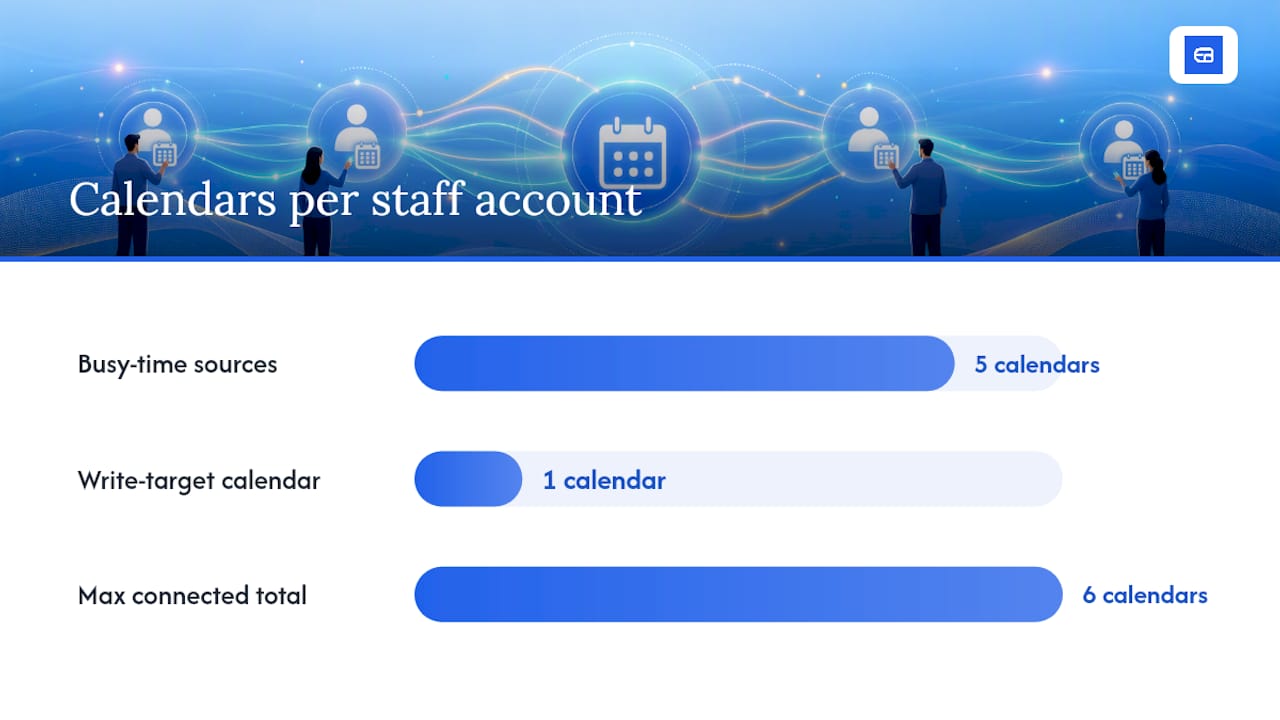
- Decide the maximum number of calendars per staff member to connect as busy-time feeds — up to five calendars per account can serve as busy-time sources while one calendar acts as the write-target
Booking data to confirm before connecting:
- Service durations for every appointment type
- Buffer times between appointments (cleanup, travel, prep)
- Resource assignments (treatment room, equipment, chair)
- Time zone settings on both the booking platform and each staff calendar account — mismatches here cause the most persistent scheduling errors
Permissions matrix:
| Role | Minimum required access |
|---|---|
| Owner / admin | Full OAuth scope, write-target configuration, conflict-rule management |
| Manager | Read connected calendars, modify buffer settings, view sync logs |
| Staff | OAuth consent for their own calendar, read-only view of their schedule |
Compliance note for healthcare providers: If your practice is subject to HIPAA, treat every calendar event as potentially protected health information until a Business Associate Agreement (BAA) is in place with your booking platform vendor. Do not put client names, diagnoses, or treatment details in calendar event titles or descriptions.
How you can sync multiple calendars: methods, pros and cons
Three approaches exist. The right one depends on how much latency you can tolerate and how much technical maintenance you want to own.
| Method | Latency | Complexity | Failure mode | Best for |
|---|---|---|---|---|
| Real-time two-way (push/webhook) | Under 2 seconds | Low to medium | Webhook replay gaps, token expiry | Most service businesses |
| Scheduled-polling feeds (ICS/CalDAV) | 15+ minutes | Low | Phantom slots during polling gap | Low-volume, low-risk use cases |
| Middleware adapters (API layer) | Configurable | High | Adapter drift, maintenance overhead | Multi-location or custom stacks |
Real-time two-way sync uses push notifications (webhooks) to propagate changes the moment they happen. Push-based sync delivers sub-two-second propagation compared with the 15-minute delays typical of polling, which is the difference between a phantom slot and a clean conflict check.
Scheduled-polling feeds export an ICS file on a timer. Simple to set up, but the polling gap means a staff member can block time on their personal calendar and the booking platform will not know for up to 15 minutes. Acceptable for a solo freelancer with low booking volume; not acceptable for a busy salon with back-to-back appointments.
Middleware adapters sit between your booking platform and calendar APIs. An adapter pattern with idempotent consumers and replayable webhooks is the most resilient architecture for complex or multi-vendor environments, but it requires developer resources to build and maintain.
Pro Tip: Store raw webhook payloads in a durable queue before processing them. If a delivery fails, you can replay the event rather than losing the update entirely.
Step-by-step implementation plan for salons, gyms, clinics, and freelancers
Setup steps:
- Inventory all calendars in use across your team (personal, shared, resource)
- Map each staff member to their calendar ID in the booking platform
- Designate one calendar per staff member as the write-target for new bookings
- Add all other relevant calendars as read-only busy-time feeds
- Configure conflict-resolution rules (e.g., block the slot if any busy-time feed shows a conflict)
- Enable push notifications or webhooks for real-time updates
- Set service durations and buffer times for every appointment type
- Run test scenarios (see below)
- Go live with a monitoring window of at least 7 days
Test scenarios to run before going live:
- Attempt a double-book: create a manual event on a staff calendar and confirm the booking platform blocks that slot
- Create an external calendar event mid-day and verify it appears as blocked within 2 seconds
- Modify a recurring appointment and confirm all future instances update correctly
- Cancel an appointment via the booking platform and verify the calendar event is removed
- Book a cross-time-zone appointment and confirm the slot displays correctly in both the staff calendar and the client confirmation
A staged migration through shadow mode, pilot, and progressive cutover is the lowest-risk path to a clean go-live.
Go-live checklist:
- Shadow mode complete with less than 1% inventory variance
- Zero real double-books recorded during pilot
- All staff have completed OAuth consent
- QuickBooks or Xero accounting sync tested with at least one appointment-linked invoice
- Mobile app installed and tested by all staff
- Voice agent enabled and tested for accessibility
- Rollback plan documented (disable webhooks, revert to manual scheduling)
Pro Tip: Run a short pilot with a subset of staff in shadow mode — bookings are mirrored but not published to clients. Compare the booking platform’s availability feed against each staff calendar nightly before cutting over.
Common sync problems and how to fix them
Duplicate events occur when a webhook fires more than once. Fix: implement idempotency keys so the booking platform ignores replayed events it has already processed.
Missing writes usually mean an OAuth token has expired or the write-target calendar was misconfigured. Check token expiry dates and re-authorize the affected staff account.
Delayed updates signal that the integration fell back to polling. Verify that webhooks are still registered and that the endpoint is returning a 200 status.
Time zone mismatches are the subtlest failure. The calendar account’s time zone setting and the booking platform’s time zone must match. A staff member who travels and changes their device time zone can silently shift all their calendar events.
Phantom slots appear when a conflict check runs before a busy-time feed has updated. This is a latency problem — push-based sync eliminates it; polling-based sync cannot.
Warning: Never delete a calendar event directly from Google Calendar or Outlook to cancel an appointment. Deleting the event breaks the booking platform’s mapping and leaves the appointment active in your system. Always cancel through the booking platform so the cancellation, refund, and calendar removal happen together.
Collecting diagnostic data for support: capture the event ID, the webhook payload, the timestamp of the last known good state, and any error codes from the calendar API response. This data cuts support resolution time significantly.
Security, privacy, and compliance for service businesses
Calendar integrations touch client data, so baseline security practices are non-negotiable.
- Use OAuth 2.0 for all calendar connections — no password storage, ever
- Apply least-privilege scopes: request only the permissions the integration actually needs (read free/busy, write to one calendar)
- Rotate OAuth tokens on a regular schedule and audit connected accounts quarterly
- Verify webhook signatures before processing payloads to prevent spoofed events
- Use idempotency keys and retry policies to handle delivery failures without data corruption
Privacy configuration: write only the appointment metadata the staff member needs (time, duration, service type) to their calendar. Mark events as “Busy” rather than including client names or contact details. Personal event titles and attendee details stay private to the staff calendar — only busy-time windows should be visible to the booking system’s availability engine.
HIPAA note: Healthcare providers must have a signed BAA with every vendor that processes appointment data, including the booking platform and any middleware. Calendar event titles and descriptions must never contain protected health information (PHI) — patient names, diagnoses, or treatment notes — regardless of whether the calendar is marked private.
Operational practice: maintain an access log of which staff accounts are connected, review it monthly, and train staff that all cancellations must go through the booking platform, not through direct calendar edits.
How long does implementation take, and what drives the cost?
Typical timelines:
- Single staff, quick connect: 1–3 hours including OAuth setup and a basic test
- Small practice rollout (3–10 staff): 1–2 weeks including shadow mode, test scenarios, and staff training
- Multi-location rollout: 2–8 weeks with a staged pilot, progressive cutover, and monitoring SLOs
Main cost drivers:
- Number of staff calendars to connect and map
- Custom adapter or middleware development for non-standard calendar environments
- Change-management training time (the hidden cost of unsynchronized systems includes the staff hours spent on manual workarounds before the fix)
- Compliance auditing for HIPAA-regulated practices
- QuickBooks or Xero accounting integration testing and reconciliation
Better staff scheduling alignment improves utilization and revenue outcomes, which means the time invested in a clean implementation pays back faster than most managers expect. Budget at least one full week of QA time for any practice with more than five staff members, and plan a 7-day monitoring window after go-live to catch edge cases before they affect clients.
What the calendar sync problem actually teaches you about your operations
The businesses that struggle most with double bookings are rarely running the wrong software. They are running the right software incorrectly — staff marking time off in a personal calendar the booking platform cannot see, managers canceling appointments by deleting calendar events instead of using the platform, and no one auditing connected accounts after a staff member leaves.
Real-time conflict checks solve the technical problem. But the operational discipline — requiring staff to use the booking platform for every cancellation, training them on the mobile app, and auditing connected calendars quarterly — is what keeps the system clean six months after go-live. Expressbook’s mobile app and voice agent make that discipline easier to maintain because staff can manage their schedules from anywhere, including team members who rely on voice-based accessibility tools.

The one tip worth applying today: require every staff member to mark personal time as “Private” in their calendar and to use the booking platform for all cancellations. That single rule eliminates the two most common sources of sync failure before any technical fix is needed.
Expressbook handles multi-calendar sync so you can focus on your clients
Double bookings cost more than a refund. They cost client trust. Expressbook gives service businesses real-time two-way sync with Google Calendar and Microsoft Outlook, multi-calendar busy-time feeds, and a single write-target configuration that keeps every staff schedule accurate the moment a booking is confirmed or canceled.
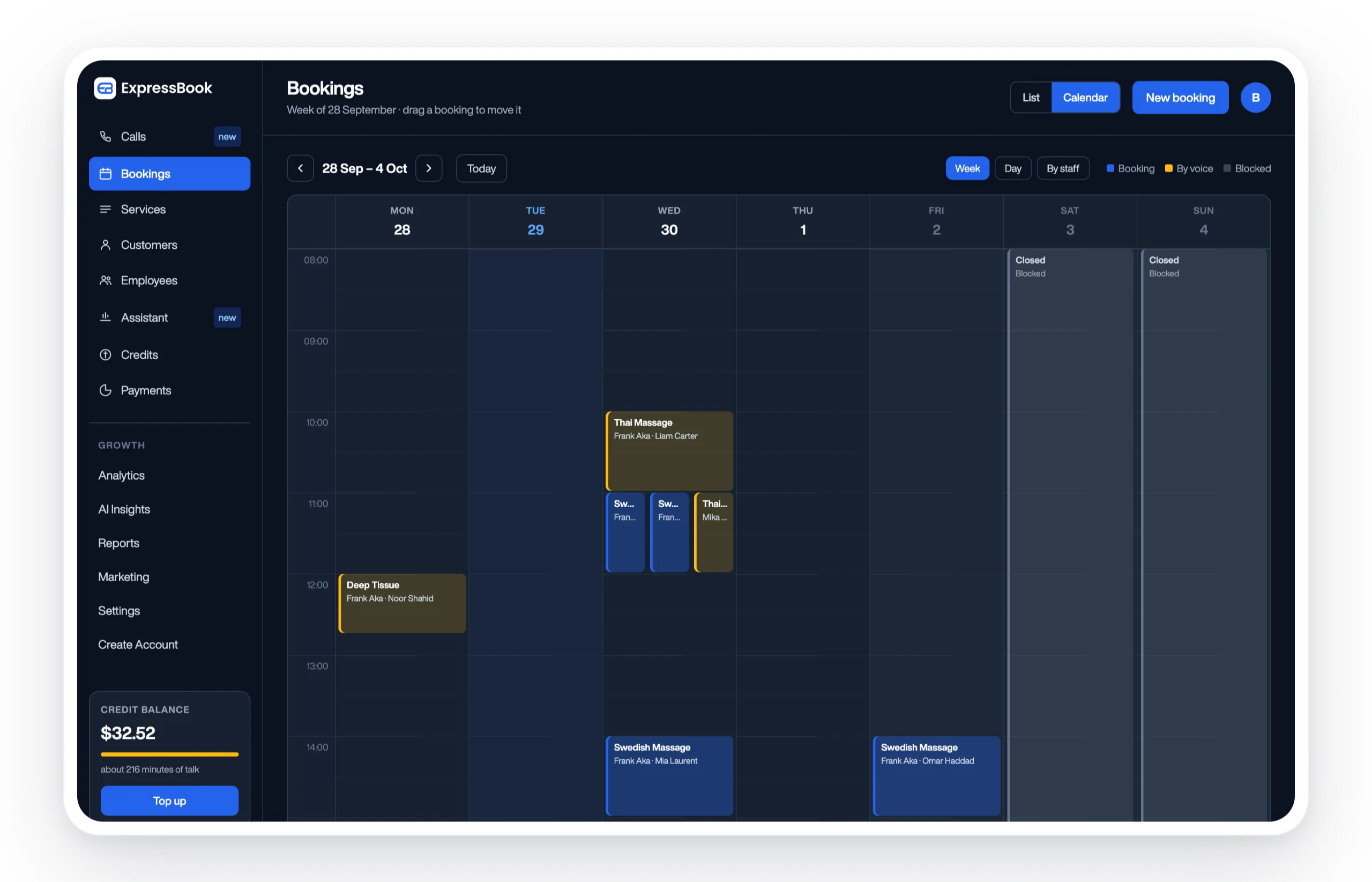
The platform also connects directly to QuickBooks and Xero for appointment-linked invoicing, so your accounting reconciliation happens automatically rather than at the end of the month. The mobile app lets managers and staff view and manage schedules from anywhere. The voice agent makes booking accessible to clients with visual impairments and handles common business questions automatically. Expressbook claims to save service businesses over 10 hours per week in administrative work.
Set up Expressbook, there is no subscription, so you can run the full shadow-mode pilot, complete your test scenarios, and confirm the integration works cleanly before relying on it. Start by connecting one staff member’s calendar first, validate the conflict-check behavior, then roll out to the full team.
Sources
Technical and operational references:
- The Hidden Cost of Unsynchronized Booking Systems – MOHA Software
- Resilient Calendar API Integrations (2026)
- How employee scheduling affects revenue
Expressbook product references: