
Most booking system demos are run by the people selling them. They know which services to pick, which questions to ask and which buttons to leave alone. That is fine for a first look, but it will not tell you how the system will cope with your services, your team and the slightly unusual way your clients ask for things.
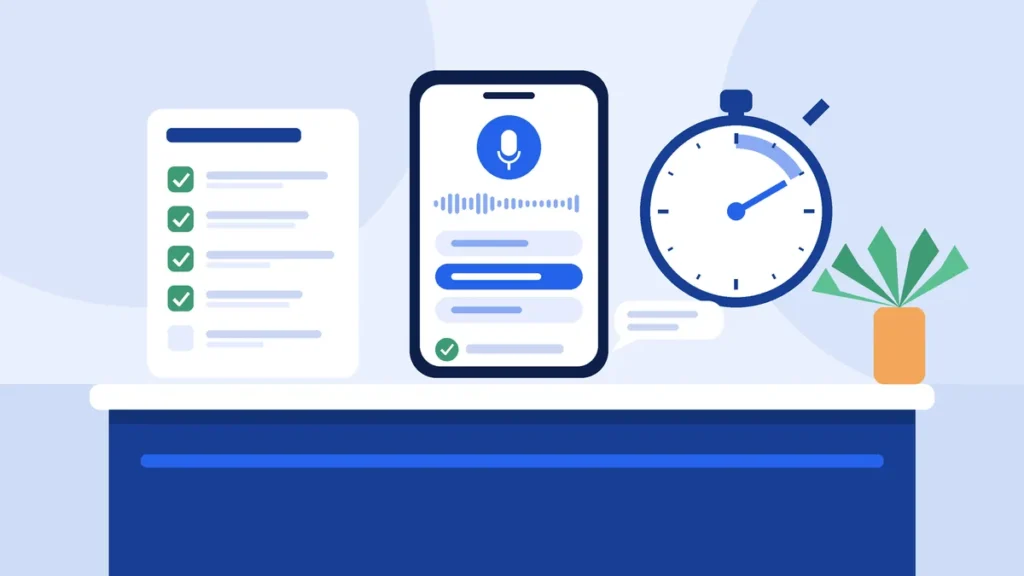
The test that really counts is the one you run yourself. This guide gives you a simple ten-minute script for trying an online booking system on your own services: what to set up first, what to ask, what to try to break and what to check afterwards. It works for any tool you are considering, and we will show how each step plays out in ExpressBook.
TL;DR:
- A guided demo shows you the best case. Your own test shows you the real one.
- Set up three real services, with real durations and staff, and a deposit on one of them.
- Book the way your clients actually talk, including vague times, awkward requests and changes of mind.
- Try to catch it out: a slot nobody can do, a question that needs a person, an email address that is easy to mishear.
- Check the calendar, the confirmation and the record of the conversation afterwards, not just the screen.
Why a Guided Demo Is Not Enough
A guided demo is built to go smoothly. The services are tidy, the calendar is half empty and the questions are the ones the product handles well. None of that is dishonest, but it is not your busiest Saturday morning.
Your business has its own quirks: a colour appointment that runs for two hours, a therapist who only works on Tuesdays, a client who wants to book for herself and her daughter at the same time. The only way to know whether a booking system copes is to give it those quirks and watch what it does.
Before You Start: Set Up Three Real Services
Do not test with “Service 1” and “Test staff”. Use a small slice of your real business so the results mean something. Pick:
- One quick, common service, such as a cut, a nail infill or a short consultation.
- One long service that needs a deposit, such as colour, a long massage or a tattoo session.
- One service that only certain people can do, so you can see whether the system respects who does what.
Add your real opening hours and at least two team members with different shifts. In ExpressBook, setup is three screens: your shop (name, hours and location), your services (duration, price and who can do them) and a credit top-up. The assistant reads your services live, so anything you change shows up in the very next conversation.
The Ten-Minute Test Script
Open your booking page on your phone, just as a client would, and work through these in order. Each one takes a minute or two.
1. Ask the way your clients really ask
Skip the tidy request. Say something like “Anything Thursday after work?” or “Can I get in for a fringe trim this week?” A good system works out the service and the time window from plain words, then offers a few suitable times rather than a wall of slots. ExpressBook offers two or three, and if one is taken while the client is thinking, it simply offers the next.
2. Ask for something that cannot happen
Request the specialist service on a day when only the wrong person is working, or ask for a time when you are closed. The right answer is a polite no and a sensible alternative. It should only ever offer slots with someone who can actually do the service.
3. Book the long service and pay the deposit
Book the service you set a deposit on and follow the payment link through to the end. Check that the slot is held, that the amount matches what you set and that the client is told clearly what they are paying for. Our guide to collecting booking deposits without losing clients covers how to set amounts fairly.
4. Give it a tricky detail
Email addresses, phone numbers and promo codes are easy to mishear, especially in a noisy room. Spell out an awkward email address and see what happens. ExpressBook puts a box on screen so the client can type it instead, which means fewer confirmations going to the wrong inbox.
5. Change your mind
Come back and move the appointment, then cancel it. Clients do this all the time, so it should be as easy as booking. In ExpressBook, moving or cancelling is just another conversation.
6. Ask something it should not answer
Ask a medical question, make a complaint or ask about a large group booking. These should go to a person. Check that you can write your own handover rules, that the system takes the client’s number and that the request lands somewhere you will actually see it. In ExpressBook, it goes to the top of your Calls screen for a call back.
7. Try another language (if it matters to you)
If you have international clients, ask it to switch language part way through. ExpressBook answers in your language by default, switches when a client asks and sends the confirmation in the language they booked in.
What to Check Afterwards
The conversation is only half the test. Spend a few more minutes behind the scenes:
- The calendar: is each booking in the right slot, with the right person and the right length? If you use Google Calendar, does it appear there too?
- The confirmation: did the email arrive straight away, with the correct details? Is a reminder set for before the day?
- The record: can you read back exactly what was said? ExpressBook logs every call with a transcript, so you can see where a client might get stuck.
- The handover: is the call-back request where you expected it, with the number and the reason?
If something looks off, check the duration, shift or staff skill behind it and run that step again.
Questions to Ask Before You Commit
A good test answers the “does it work?” question. These answer the “will it suit us?” question:
- How is it billed? A monthly subscription, per booking or by usage? What does a quiet month cost?
- Where can clients reach it? A booking page, your own website, a QR code in the room?
- What is included and what is extra? Deposits, a waiting list, intake forms and accounting sync can be sold separately.
- Can you stop easily if it turns out not to be right for you?
ExpressBook uses prepaid credits rather than a subscription. Talk time is billed by the second, email confirmations and reminders are free, and there is nothing to cancel. Clients can reach it on your booking page, a widget on your site or a QR code. Deposits, a waiting list, intake forms, Google Calendar sync and QuickBooks and Xero sync are included. Current rates are on the ExpressBook website.
Signs It Is Ready for Your Clients
You are not looking for perfection, just three things: it books awkward requests properly, turns down impossible ones politely with a better suggestion, and passes sensitive ones to you. If it only works when you phrase things carefully, it is not ready for real clients.
Run Your Own Test This Week
If you would like to see the flow before setting anything up, start with our short walkthrough: See how ExpressBook works. When you are ready to try it on your own services, sign up for ExpressBook, add your three test services and open your booking page on your phone. Then try to catch it out. If it copes with your awkward questions, it will cope with your clients’ questions too.