
The fastest way to reconcile bookings in Xero is to work the Reconcile tab daily, let JAX (Xero’s automated matching engine) clear the routine transactions, and route grouped payouts through a clearing account. The exception that trips up most service businesses: payment gateways like Stripe bundle dozens of bookings into one payout, so a straight Match rarely works there. Sync your booking software to Xero and you cut the manual work down to verification.
TL;DR:
- Grouping payouts from payment gateways like Stripe requires a dedicated clearing account to accurately match gross sales and fees over payout cycles.
- Automated tools like JAX improve reconciliation efficiency but rely on consistent data flows, making correct booking and invoice synchronization essential.
- Regularly reviewing and correcting duplicates, missing statement lines, or misclassified transfers is crucial to keeping ledger and bank balances in sync.
- Syncing booking software directly with Xero simplifies reconciliation by pre-linking invoices and payments, reducing manual verification time significantly.
- Reconciliation should follow a daily, weekly, and month-end routine, with a focus on fixing data flow issues before relying on automation tools.
Table of Contents
- What Is the Reconcile Tab and How Do You Use It?
- How Do You Handle Grouped Payouts From Payment Gateways?
- Which Automation Tools Cut Reconciliation Time?
- Why Do Reconciled Balances Stop Matching, and How Do You Fix It?
- How Should Booking Software Sync With Xero?
- What Should a Reconciliation Checklist Look Like?
- What the Conventional Reconciliation Advice Gets Wrong
- Get Bookings Into Xero Without Touching a Keyboard
- Sources
What Is the Reconcile Tab and How Do You Use It?
Xero’s Reconcile tab is where every bank statement line meets its matching transaction in your books. You will find it under Accounting, then Bank accounts, then the specific account you want to work through. Every line your bank feed pulls in shows up here waiting for a decision.
Three actions handle almost everything:
- Match links a bank line to a transaction that already exists, such as an invoice you sent last week.
- Create builds a new transaction on the spot, useful for bank fees, subscription charges, or spending that never got entered anywhere else.
- Transfer moves money between your own accounts, like sweeping cash from a checking account into a savings account.
For a single booking paid in full, Xero usually suggests the match automatically. Open the line, check that the suggested invoice and amount agree, and confirm. When one payment covers several bookings (a client paying for four sessions at once, for example), tick each invoice until the running total matches the deposit exactly. If the client paid less than invoiced, record it as a part payment rather than forcing a match that does not add up.
Bank feeds handle most accounts automatically, but if a feed drops or a bank does not support live feeds, you can import a statement file (CSV, OFX, or QIF) directly into the Reconcile tab and work from that instead. A quick five-step rhythm covers most sessions: open the account, scan the suggested match, accept it or pick the correct tab, confirm, and move to the next line.
How Do You Handle Grouped Payouts From Payment Gateways?
Stripe, Square, and similar processors do not send you gross sales. They send net payouts, after fees and refunds get netted out, often bundling a week’s worth of bookings into a single deposit. That single number never lines up cleanly against your invoices in Xero, which is exactly why so many businesses give up and just “create” a lump transaction, losing the audit trail in the process.
The fix is a dedicated Payment Gateway Clearing account, set up as a current asset in your chart of accounts. Every individual sale posts here first, not straight to the bank.
- Post each gross booking payment as a debit to Clearing and a credit to Sales.
- Post the processor’s fee as a credit to Clearing and a debit to a Merchant Fees expense account.
- Post refunds the same way, in reverse, on the date they actually happen.
- When the bank payout lands, reconcile it against the accumulated Clearing account movements for that payout period, not against a single invoice.
If a payout represents bookings minus Stripe fees, your Clearing account should show exactly those two entries netting to the payout amount before you touch the bank line. Done consistently, the clearing account nets to zero over each payout cycle. If it does not, you have a missing refund or a timing gap between when the sale posted and when the payout actually cleared.
Which Automation Tools Cut Reconciliation Time?
Bank rules and cash coding exist specifically so you stop clicking through identical transactions one at a time. A bank rule tells Xero: whenever a payment from “Acme Wholesale Supplies” for roughly $150 hits the account, code it to Cleaning Supplies automatically. Set one up once, and every future occurrence reconciles itself.
Cash coding takes a different approach for bulk cleanup. It gives you a spreadsheet-style view where you can code and reconcile up to 200 statement lines at once, which is ideal for clearing a backlog of small, similar transactions like card fees or petty cash entries.
JAX, Xero’s automated reconciliation engine, layers on top of both. It draws on four methods, Rule, Match, Memory, and Prediction, and only auto-reconciles when it has high confidence in the result. Everything else gets surfaced as a suggestion for you to approve or reject.
- Turn JAX on per bank account rather than account-wide, so you can pilot it where transaction patterns are predictable.
- Filter the Reconciled page periodically to review what JAX auto-matched, not just what it suggested.
- Spot-check memory and prediction matches monthly. They improve with more data, but they still learn from your corrections.
Pro Tip: Run a filtered view of JAX’s auto-reconciled transactions once a week rather than trusting it silently. Catching a wrong prediction after five occurrences is a lot cheaper than catching it after fifty.
Why Do Reconciled Balances Stop Matching, and How Do You Fix It?
A mismatch between your bank balance and Xero’s ledger balance almost always traces back to one of three causes: a duplicate entry, a missing statement line, or a transfer that got coded as income or an expense instead of a transfer.
- Check for duplicates first. Search the account for two transactions with the same amount and date, a common result of both a bank rule and a manual entry firing on the same line.
- Look for gaps in statement lines. If your bank feed lapsed, reauthorize the connection or import the missing period as a CSV file.
- Fix transfers coded as income or expense. Undo the original entry and recode it through the Transfer tab so it stops inflating your revenue or costs.
For small errors, like a wrong tax code or the wrong contact on an otherwise correct transaction, edit directly on the Reconciled page rather than unwinding the whole reconciliation. Save Remove & redo for cases where the dollar amount itself is wrong, since removing it returns the line to the Reconcile tab as unmatched, ready for a fresh match. Whichever route you take, note what changed, attach the supporting invoice or receipt, and keep the correction visible in your records rather than quietly overwriting history.
How Should Booking Software Sync With Xero?
The cleanest workflow looks like this: a client books, the booking app generates the invoice, the payment gets captured at checkout, and that payment posts to Xero already linked to its invoice. By the time you open the Reconcile tab, there is nothing left to build, only a match to verify. Appointment scheduling apps that connect to Xero are built around exactly this handoff, and it is the difference between reconciliation as a chore and reconciliation as a five-minute check.
Before trusting any sync fully, verify four things: tracking categories line up with how you report revenue, tax rates match what you actually charge, contacts map to the right client record instead of creating duplicates, and receipts or invoices attach automatically rather than needing manual upload.
ExpressBook is built for exactly this handoff. It syncs bookings, payments, and client data straight into Xero, which removes the manual entry that causes most end-of-month panic in the first place. A few things worth knowing if bookings and Xero ever fall out of step:
- Mismatched tax codes are the most common cause, usually from a service category configured differently in the booking app than in Xero.
- Duplicate contacts show up when a client books under a slightly different email or name than their existing Xero contact.
- If a sync stalls entirely, calendar sync troubleshooting steps usually isolate the cause within minutes.
What Should a Reconciliation Checklist Look Like?
Reconciliation stops being a monthly ordeal once it becomes a habit instead of an event. A workable cadence:
- Daily: refresh the bank feed and clear any high-confidence JAX matches.
- Weekly: run cash coding on small recurring items and reconcile the payment gateway clearing account against that week’s payouts.
- Month-end: do a full review, attach any missing receipts, and document exceptions before closing the period.
Basic controls matter more than people expect. Separate who approves transactions from who reconciles them, back up your Xero organization data regularly, and require a named sign-off once month-end reconciliation is complete.
Pro Tip: Reconcile the clearing account weekly, not monthly. A discrepancy that takes ten minutes to trace after one week can take an entire afternoon to trace after four.
What the Conventional Reconciliation Advice Gets Wrong
Most guidance on reconciling in Xero treats every bank line the same way: open it, click Match, move on. That works fine for a rent payment. It falls apart the moment a service business takes online bookings, because the money that hits the bank almost never matches what actually got sold. The gap between gross bookings and net payouts is the single biggest reason small businesses fall behind on their books, not laziness or lack of discipline.
The instinct to blame the software is understandable but usually wrong. JAX and cash coding genuinely reduce the mechanical work, but they cannot fix a broken data flow, only speed up whatever flow already exists. If bookings arrive in Xero as one lump sum with no invoice trail, automation just reconciles bad data faster.
Fix the plumbing first. Get bookings, invoices, and payments flowing into Xero correctly, with a clearing account absorbing gateway payouts, before leaning on any automation to save time. Reconciliation should be the last five minutes of a well-designed process, not the moment you first discover what actually happened last month.
— serge
Get Bookings Into Xero Without Touching a Keyboard
Expressbook eliminates the manual entry that turns reconciliation into a monthly scramble, syncing every booking, payment, and client record straight into Xero the moment a client checks out. Instead of untangling gross sales, processor fees, and grouped payouts by hand, your invoices and payments arrive already linked, so the Reconcile tab becomes a five-minute verification step rather than a data-entry job.
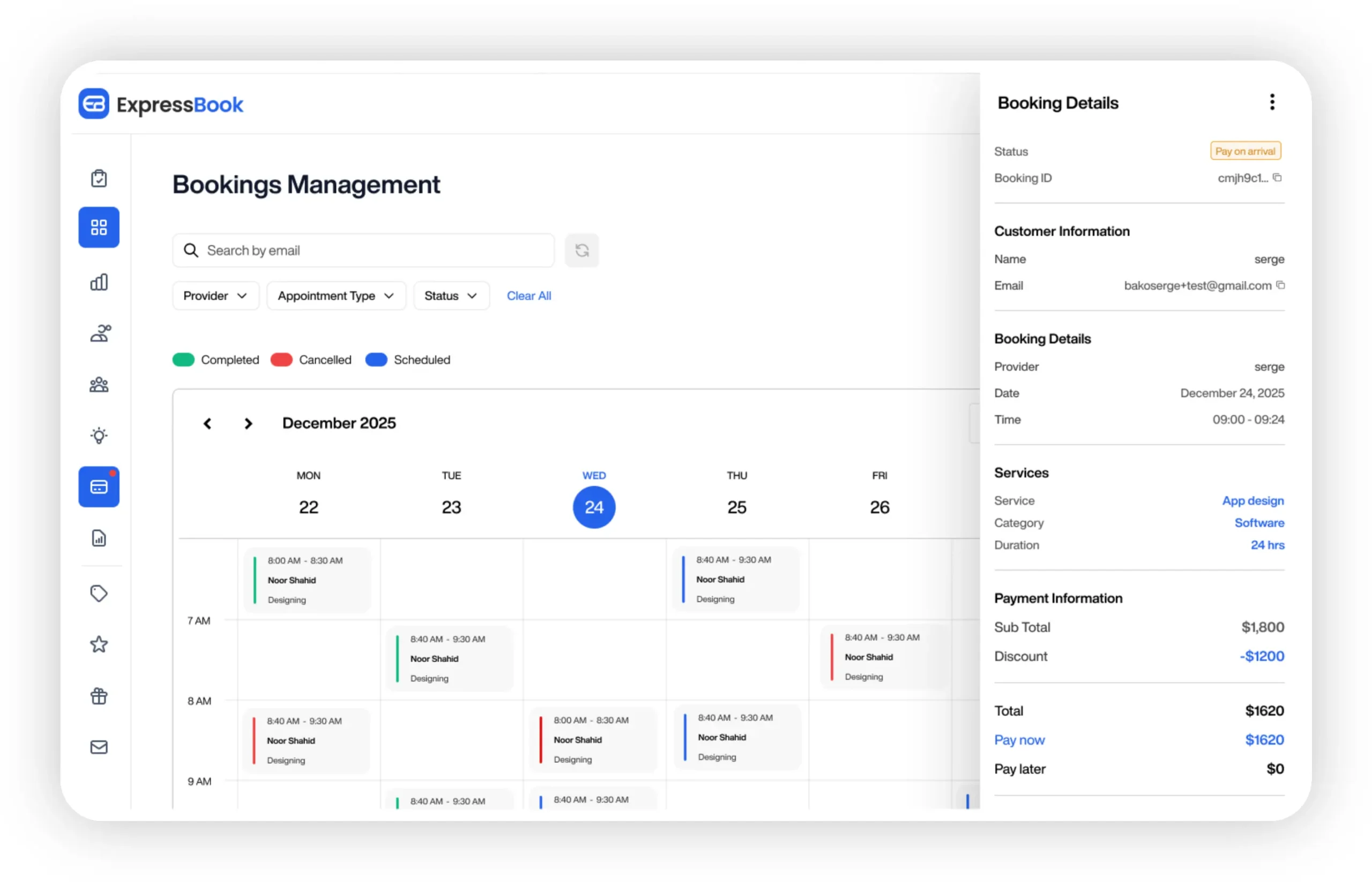
It fits the exact gap this article covers: booking-heavy service businesses (salons, gyms, wellness clinics, therapists) that lose hours every month reconciling payment gateway payouts against dozens of individual bookings. Expressbook’s dedicated mobile app lets owners and admins check bookings and payment status from anywhere. Its built-in voice agent lets clients with visual impairments book appointments and get answers to business questions without needing a screen at all.
If your books are still fighting your booking calendar, try Expressbook free for up to three months and see how much of your reconciliation workload simply disappears once the sync handles it for you.
Sources
- What’s new in Auto Bank Reconciliation
- Bank reconciliation in Xero
- How to reconcile Stripe payouts in Xero when fees and refunds don’t match
- Bank Reconciliation Software | Account Reconciliation | Xero US