An effective appointment confirmation email does one job above all others: it gives the client instant proof the booking exists, plus the “vital few” details they’d otherwise have to call and ask for. Skip that job and you get a full inbox of “just checking this went through” messages the next morning.
Get the basics right and every confirmation should include:
- Date and time, with the timezone spelled out
- Location or the video call link
- Service name and staff or provider assigned
- A direct contact for questions
- A reschedule or cancel link
- An add-to-calendar option
Nail those six items and you’ll see fewer admin calls, fewer no-shows, and a client who feels handled rather than left guessing.
Key Takeaways
An effective appointment confirmation email works because it delivers instant proof of booking plus the vital few details clients need, sent the moment a booking reaches confirmed status.
| Point | Details |
|---|---|
| Confirm on confirmed state only | Trigger the email once a booking is authoritative, never on pending or tentative records. |
| Include the vital few details | Date, time with timezone, location or link, provider, and a reschedule path prevent most follow-up calls. |
| Separate confirmations from reminders | Confirmations prove the booking exists; reminders nudge closer to the appointment date. |
| Test before automating fully | Verify calendar links, reschedule paths, and inbox rendering before a full rollout. |
| Expressbook automates the full sequence | Real-time sync, calendar links, a mobile app, voice-agent accessibility, and a free trial up to three months support hands-off confirmation delivery. |
Table of Contents
- What Is an Appointment Confirmation Email, Exactly?
- Key Elements Every Confirmation Email Needs
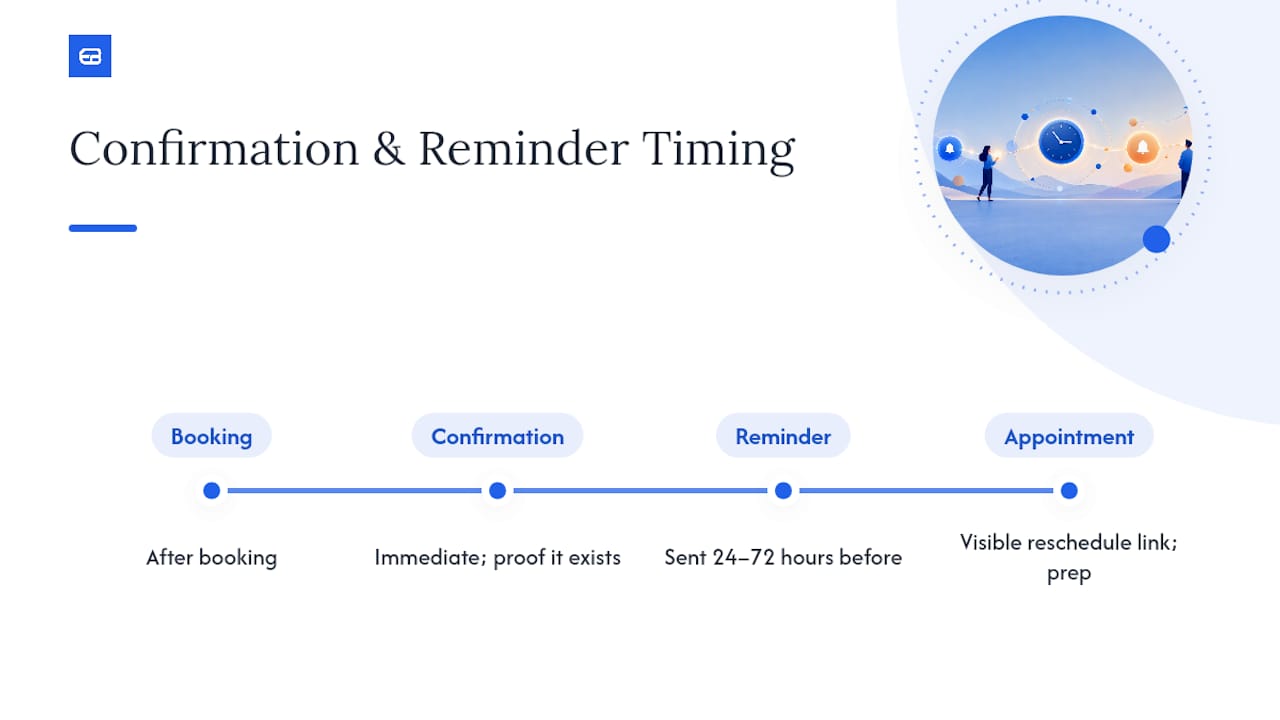
- When Should You Send an Appointment Confirmation Email?
- Writing Subject Lines and Copy That Get Opened
- Ready-to-Copy Appointment Confirmation Templates
- How to Automate Confirmations With Booking Software
- Deliverability and Testing Before You Flip the Switch
- Which Tactics Inside a Confirmation Reduce No-Shows?
- How to Personalize Without Losing Clarity
- Launch Checklist for Turning On Confirmations
- Why Getting This Right Changes How Your Business Runs
- Try ExpressBook for Automated, Reliable Confirmations
- Frequently Asked Questions
- Sources
What Is an Appointment Confirmation Email, Exactly?
A confirmation email is a transactional message, meaning it fires automatically once a specific action happens, in this case, a booking landing in a confirmed state. It’s not a nudge. It’s a receipt. That distinction gets lost constantly, and it’s why so many businesses send confirmations and reminders that sound identical and confuse clients about which one actually matters.
Confirmations and reminders solve different problems. A confirmation answers “did this booking actually happen?” A reminder answers “is this still on my calendar and am I prepared?” Booking confirmation templates should only generate once the record reaches an authoritative confirmed state, because triggering on a pending or tentative booking creates the exact confusion you’re trying to eliminate.
| Attribute | Confirmation Email | Reminder Email |
|---|---|---|
| Trigger | Booking reaches confirmed status | Set time before the appointment |
| Purpose | Prove the booking exists | Reduce forgetting or last-minute cancellation |
| Timing | Sent instantly | Sent 24 to 72 hours out, sometimes 1 hour for virtual sessions |
| Tone | Neutral, record-keeping | Slightly more urgent, action-oriented |
Key Elements Every Confirmation Email Needs
Every field in a confirmation email exists to prevent a phone call. Leave one out and that gap becomes a support ticket, a missed appointment, or an awkward “wait, where do I go again?” text an hour before the session.
Here’s the full list worth including:
- Sender identity your business name, not a no reply address that looks like spam
- Booking reference a stable ID the client can quote if something needs fixing
- Service name exactly what was booked, no ambiguity
- Date and time with the timezone named, not assumed
- Duration so clients can plan around it
- Location or video link the actual address or the exact URL, not a generic “check your calendar”
- Staff or practitioner name especially in multi-provider businesses
- Payment or deposit status reference-only, no need to re-invoice in the same message
- Reschedule or cancel path a working link, not a phone number they have to call during business hours
- Contact or help path one clear way to reach a human
- Add-to-calendar link one click, done
- Clear next step what, if anything, they need to prepare or bring
A professional confirmation email that includes payment status, contact information, and preparation instructions functions as a record of truth that clients can refer back to instead of emailing your front desk.
| Element | Why It Matters |
|---|---|
| Booking reference | Speeds up any support conversation, no back-and-forth |
| Named timezone | Prevents no-shows from timezone math errors |
| Reschedule link | Removes the friction that turns a no-show into a phone tag session |
| Add-to-calendar | Puts the appointment where the client actually looks |
Pro Tip: Bold the date, time, and location as a three-line block at the very top of the email. Everything else can wait below the fold, but those three lines need to be visible without scrolling, even on a phone screen.
When Should You Send an Appointment Confirmation Email?
Send it the moment the booking hits confirmed status, not “sometime today” and not batched overnight. Confirmation emails should go out instantly once a booking is confirmed so the client has proof and details in hand before they’ve even closed the booking tab.
From there, reminders take over on a separate schedule:
- 48 to 72 hours before a general nudge, works well for most service appointments
- 24 hours before the standard reminder window most industries settle on
- 1 hour before for virtual sessions, since login links get lost in inboxes fast
The confirmation and the reminders aren’t competing messages. The confirmation is the record. The reminders are the nudges. Blur that line, and clients start ignoring both because they can’t tell which message actually requires action.
Writing Subject Lines and Copy That Get Opened
Short and specific beats clever every time in a transactional email. A subject line like “You’re confirmed: Tuesday at 2:00 PM” tells the recipient everything before they even open it, which is exactly what you want for a message they’ll search their inbox for later.
A few subject lines worth testing:
- “Confirmed: [Service] on [Date] at [Time]”
- “Your appointment is booked, [Name]”
- “[Business Name]: booking confirmed for [Date]”
- “See you [Day] at [Time]”
Keep the sender name recognizable, put the date or time in the subject whenever the character count allows, and cut anything that reads like marketing copy, exclamation points, discount language, emoji stacking. Spam filters flag that pattern, and so do skeptical clients.
Pro Tip: Run a simple A/B test between a subject line featuring the date (“Confirmed: Friday at 10 AM”) versus one featuring the client’s name (“You’re confirmed, Sarah”). Open-rate differences here are usually small but consistent, and the winner often varies by industry, so test before you assume.
Ready-to-Copy Appointment Confirmation Templates
Below are 15 short, editable templates grouped by tone and use case. Swap the bracketed placeholders and drop these straight into your booking system or email tool.
Formal / professional
-
“Dear [Customer], your appointment for [Service] with [Provider] is confirmed for [Date] at [Time] ([Timezone]). Location: [Location/Link]. Booking ID: [Booking ID]. Manage your booking here: [Manage Booking Link].”
-
“This confirms your reservation for [Service] on [Date] at [Time]. Please arrive 10 minutes early. Questions? Contact us at [Contact]. Reference: [Booking ID].”
-
“Your appointment with [Provider] has been confirmed. Details: [Date], [Time], [Location/Link]. To reschedule, use this link: [Manage Booking Link].”
Informal / friendly
-
“Hey [Customer]! You’re all set for [Date] at [Time] with [Provider]. See you then! Need to change anything? [Manage Booking Link].”
-
“Booking confirmed! [Service] on [Date] at [Time]. Address: [Location/Link]. Can’t make it? Just tap here: [Manage Booking Link].”
-
“You’re on the calendar, [Customer] — [Date] at [Time] for [Service]. Questions before then? Reply to this email or call [Contact].”
Virtual appointment
-
“Your virtual appointment for [Service] is confirmed for [Date] at [Time] ([Timezone]). Join here: [Location/Link]. Test your connection a few minutes early.”
-
“Confirmed: [Service] video session with [Provider] on [Date] at [Time]. Link: [Location/Link]. Reschedule anytime here: [Manage Booking Link].”
Medical / healthcare
-
“This confirms your appointment with [Provider] on [Date] at [Time]. Please bring your insurance card and arrive 15 minutes early to complete paperwork. Booking reference: [Booking ID].”
-
“Your visit is confirmed for [Date] at [Time]. Location: [Location/Link]. If you need to cancel, please do so at least 24 hours in advance: [Manage Booking Link].”
Class / workshop enrollment
-
“You’re enrolled in [Service] on [Date] at [Time] with [Provider]. Location: [Location/Link]. Bring [item, if applicable]. Manage your spot here: [Manage Booking Link].”
-
“Confirmed! Your spot in [Service] is reserved for [Date] at [Time]. Class size is limited, so please let us know ahead of time if you can’t make it: [Manage Booking Link].”
In-home or service visit
-
“Your [Service] appointment is confirmed for [Date] between [Time Window]. Our technician, [Provider], will arrive at [Location]. Booking ID: [Booking ID].”
-
“We’ll see you on [Date] at [Time] for your [Service] visit. Please ensure access to [relevant area]. Need to reschedule? [Manage Booking Link].”
-
“Confirmed: [Provider] will be at [Location] on [Date] at [Time] for [Service]. Contact us at [Contact] with any access instructions.”
Pro Tip: If you’re sending an SMS version alongside the email, cut the message to the four essentials, service, date, time, and a link, since most carriers truncate anything past 160 characters and the client only needs the core facts on their phone.
How to Automate Confirmations With Booking Software
Manual confirmations don’t scale past a handful of weekly bookings, and they’re the first thing to slip when you’re short-staffed. Automating this workflow removes that risk entirely, provided you build it in the right order.
- Confirm the booking has reached a genuinely confirmed status, not pending or tentative
- Generate a stable booking ID that survives any later edits to the appointment
- Populate the template variables (name, date, time, provider, location)
- Attach a calendar file (.ics) or add-to-calendar link
- Include a working manage or reschedule link
- Log delivery status so you can catch bounces before the client does
Design your templates with placeholders for personalized content, then trigger them programmatically through your email service rather than relying on a generic system default that looks the same for every business using the same software.
Expressbook handles this exact sequence natively: real-time sync verifies the confirmed state, calendar links generate automatically, and the mobile app lets staff check delivery status from a phone between clients. A built-in voice agent also lets visually impaired clients book and get appointment details read back to them, which most scheduling tools simply don’t offer.
Pro Tip: Test your automation trigger against a booking that gets canceled seconds after creation. If a confirmation still fires, your trigger is watching the wrong event.
Deliverability and Testing Before You Flip the Switch
A confirmation email that never reaches the inbox is worse than no email at all, because the client assumes it was sent and shows up unprepared, or doesn’t show up because they think the booking failed. Before automating this at scale, run through a deliverability checklist.
- Verify SPF, DKIM, and DMARC records are set up correctly for your sending domain
- Keep the sender name identical across every confirmation, no rotating “noreply” variations
- Send test messages to Gmail, Outlook, and Apple Mail accounts, then check mobile rendering on each
- Monitor inbox placement rather than assuming delivery equals inbox arrival
On the content side, test that the calendar link opens correctly, the reschedule link actually works, and the .ics file imports without errors on both iOS and Android calendars. Confirmation emails count among the most important transactional messages a business sends, and a broken link inside one undermines the entire point of sending it.
Pro Tip: Avoid promotional language, exclamation points, and words like “free” or “discount” in a confirmation subject line. Spam filters treat transactional and marketing email differently, and one promotional phrase can push an otherwise clean confirmation into a junk folder.
Which Tactics Inside a Confirmation Reduce No-Shows?
A confirmation email isn’t just a receipt, it’s a chance to remove the exact friction that turns a busy client into a no-show. Adding a reschedule link with a clear deadline can meaningfully lower last-minute no-shows, because clients who know they can move an appointment in two clicks are far more likely to reschedule than simply not show up.
A few tactics worth building in:
- A visible reschedule/cancel link with a stated deadline (e.g., “reschedule up to 24 hours before”)
- Preparation instructions and expected duration, so there’s no uncertainty about what to bring or how long to block off
- A brief, factual note on late policy or deposit status when relevant, stated plainly rather than buried in fine print
For high-stakes industries like healthcare, reminder timing tied to clinical scheduling research suggests a structured cadence, confirmation plus a follow-up reminder closer to the appointment, tends to outperform a single message sent once at booking.
Pro Tip: Put the reschedule deadline in bold, right next to the link. Clients skim these emails in seconds, and a buried deadline gets missed just as often as no deadline at all.
How to Personalize Without Losing Clarity
Branding a confirmation email is fine. Burying the details under branding is not. Keep the header minimal, a logo and brand color is enough, and resist the urge to load the top of the message with a hero image before the client even sees their appointment time.
A few rules worth following: personalize with the client’s first name, the assigned staff member, and specific service details, but skip anything that feels invasive, no referencing unrelated purchase history or personal data the client didn’t provide for this booking. Keep the first one or two lines purely transactional. Save any promotional copy, referral offers, or upsells for a separate marketing email entirely.
Pro Tip: If you want to promote a seasonal offer, send it as a follow-up email a day later, never inside the confirmation itself. Mixing the two dilutes both messages.
Launch Checklist for Turning On Confirmations
Before flipping automated confirmations live across your entire client base, work through this short list:
- Template created and reviewed for tone and accuracy
- All variables mapped correctly (name, date, time, location, provider)
- Test sends completed across major email clients
- Calendar links attached and verified
- Reschedule and cancel paths tested end to end
- Automation trigger confirmed to fire only on confirmed bookings
- Delivery monitoring enabled to catch bounces
Small rollouts catch template bugs before they reach your entire client list.
Why Getting This Right Changes How Your Business Runs
Every business owner underestimates how much time a vague confirmation email quietly costs until they fix it. The support calls asking “where do I go again?” or “what time was that?” don’t feel like a pattern in the moment, they feel like Tuesday. But they add up to hours of staff time each week spent repeating information that should have been in the original message.
The businesses that get this right treat the confirmation as infrastructure, not an afterthought bolted onto the booking flow. A platform like Expressbook, with its mobile app for staff on the move and a voice agent that makes booking accessible to visually impaired clients, exists precisely because that infrastructure needs to work without anyone thinking about it twice.
Try ExpressBook for Automated, Reliable Confirmations
Manually copying client details into email templates works fine at five bookings a week. It falls apart at fifty. Expressbook automates the entire sequence covered above, confirmed-state triggers, calendar links, reschedule paths, and syncs every booking and payment directly with QuickBooks and Xero so nothing needs re-entering at month end.
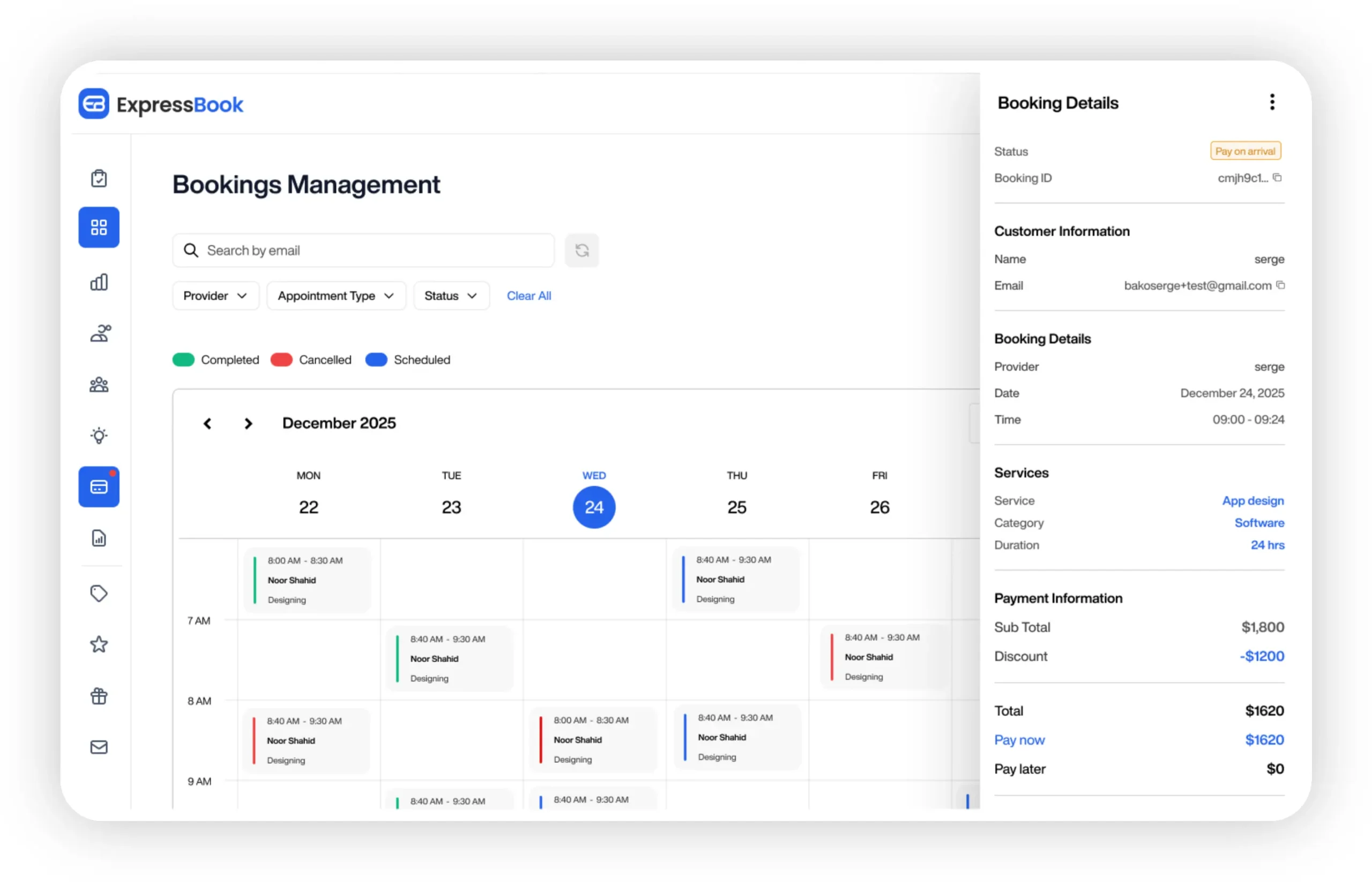
The platform includes a dedicated mobile app for both staff and clients, plus a built-in voice agent that lets visually impaired clients book appointments and get their questions answered without needing to type or read a screen. Real-time availability prevents double-bookings across every staff member, and AI-powered analytics flag scheduling gaps you’d otherwise miss.
Expressbook offers up to three months free for businesses that want to test the full workflow, confirmations, reminders, accounting sync, before committing to a plan. If you’re currently sending confirmations by hand or relying on your booking tool’s default template, see how Expressbook’s scheduling platform handles the entire process automatically, or compare it against other scheduling options to see where it fits your specific setup.
Frequently Asked Questions
What should an appointment confirmation email include at minimum?
Date and time with a named timezone, location or a video link, the service and provider, a way to reschedule or cancel, and a contact for questions. Everything else is optional polish.
How is a confirmation email different from a reminder email?
A confirmation fires once, immediately after booking, as proof the appointment exists. A reminder fires closer to the appointment date to reduce forgetting, typically 24 to 72 hours ahead.
How do I confirm an appointment without sounding robotic?
Lead with the essential details in plain language, then let a little personality show in the closing line. “You’re all set for Tuesday at 2:00 PM, see you then!” reads warmer than a bare data dump without sacrificing clarity.
Can appointment confirmation emails actually reduce no-shows?
Yes, particularly when they include a visible reschedule link with a clear deadline and preparation instructions that remove uncertainty about the visit.
Should I send a booking confirmation message by SMS or email?
Both, ideally. Email carries the full detail set; SMS works as a shorter backup with just the date, time, and a link, especially useful for clients who don’t check email as often as their phone.
Sources
For technical setup and automation logic, the Twilio SendGrid guide on branded confirmation emails and Infobip’s overview of confirmation email use cases cover trigger design and calendar integration in more depth.
For copywriting and scannability, Twilio’s roundup of confirmation email examples and Mailchimp’s booking confirmation tips offer useful subject line and structure guidance.
For behavioral tactics around no-shows, the Truesend appointment confirmation guide and industry-specific examples like this air-con cleaner booking confirmation guide show how reschedule links and preparation instructions play out in field-service contexts.
- Appointment confirmation email template (Brevo blog)
- Booking confirmation email tips and templates (Mailchimp)
- How to send on-brand confirmation emails (Twilio SendGrid)